How to Handle Lookup Fields Using Form Capture in Dynamics 365 Customer Insights – Journeys
Form Capture in Dynamics 365 Customer Insights – Journeys is a handy feature that lets you reuse existing website forms while still creating leads, contacts, and consent records in Dataverse. But one area that tripped me up for a long time was lookup fields—specifically, why they'd come through blank even when everything else looked right.
The short answer: you need to pass a GUID value, not a label. Once I understood that, everything clicked.
Why Lookups Don't Just Work
Form Capture mimics a native Customer Insights – Journeys form submission using the same backend API—without actually rendering the form. That's what makes it useful for third-party or complex forms. But it also means there's no client-side lookup resolution happening. No Dataverse metadata is loaded, and the Forms API expects all values to already be fully resolved at submit time.
In Dataverse, a lookup field stores a reference to another record—typically a GUID—not a friendly label like "Website – Contact Us". With native Journeys forms, the platform handles that resolution for you. With Form Capture, it doesn't. If the value you send isn't a valid reference the record will still be created, but the lookup will be empty.
How to Find the GUID Values For Lookup Field
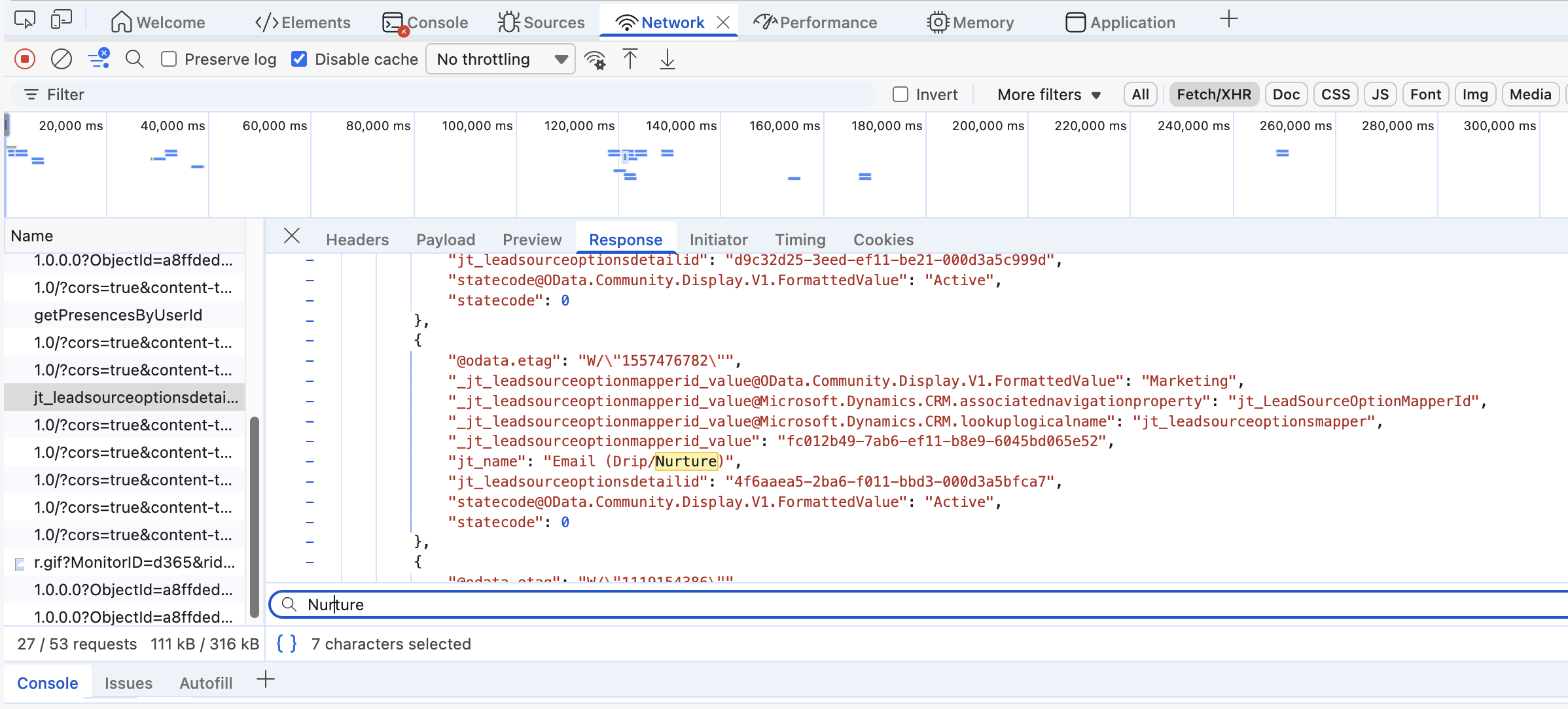
I'm sure there is a better way to do this but what I do: Open a lead or contact in D365, then pull up the browser console's Network tab. Once the Network tab is open, switch the filters to "Fetch/XHR". Next, click the search icon in the lookup field in question which triggers an AJAX call. You should see a network request show up the contains some part of the field name. If you click the request and look at the response you'll be able to find the value you're looking for by the label. Don't use the *mapperid_value, use the value in the key that ends with "id", in my case it's jt_leadsourceoptionsdetailid. Obviously yours will be specific to the field you're working with but hopefully you see the pattern.
Patterns That Actually Work
Hidden Field with a Static GUID
This is the simplest and most reliable approach when a form always maps to the same lookup value things like Lead Source Detail, Campaign, Event, or a fixed Account.
Find the GUID of the lookup record in Dataverse, add a hidden field to your form, and map it in the Form Capture script.
<input type="hidden" name="jt_leadsourcedetailid" value="d7a94c3b-1f2a-ee11-9966-000d3a8b4abc"/>
Because the Forms API accepts GUIDs directly, this approach works consistently and is the least moving parts.
JavaScript Mapping
When the lookup depends on user input you can still resolve it client-side before submission. Let the user pick something human-readable, then use JavaScript to swap it for the correct GUID before the form sends.
<label>What can we help you with?</label>
<select name="user-lead-source">
	<option value="">-- Select --</option>
	<option value="demo">I'd like a demo</option>
	<option value="contact">I just have a question</option>
</select>

<input type="hidden" name="jt_leadsourcedetailid" value=""/>

<script>
const leadSourceMap = {
	demo: "a19b2c88-3e4f-ee11-9966-000d3a8b4abc",
	contact: "d7a94c3b-1f2a-ee11-9966-000d3a8b4abc"
};

document.querySelector('select[name=user-lead-source]').addEventListener('change', (e) => {
	document.querySelector('[name="jt_leadsourcedetailid"]').value = leadSourceMap[e.target.value];
});
</script>
URL-Driven Lookups
Form Capture pairs well with UTM-style URL parameters too. With something like /contact-us?source=demo JavaScript can read the query parameter and translate it into a GUID before submission. You'd use the same approach as before except instead of waiting for a form filed value to change you read the query parameter from the URL.
Verifying It Worked
After submitting, open the Marketing Form Submission record and review the Field Submissions. If the lookup field shows a GUID and the created Lead or Contact has the field populated, you're good. If the lookup is blank, the GUID was missing, invalid, or pointing to the wrong table.
One Last Thing
Form Capture works well when lookup mappings are simple and predictable, which for most marketing-focused sites they will be. If you need interactive lookup searches or complex relational logic, Microsoft recommends rebuilding the form in the Journeys form editor instead. But for the common case, once you accept that Form Capture won't resolve lookups for you, the fix is straightforward: resolve them yourself before submission, pass a valid GUID, and Form Capture handles the rest.